AI Video Model Benchmark 2026
Speed, price and success rate for the video and image models we run, measured on real production jobs. Methodology, CSV and citation included.
Loading...
Learn the grammar.
Direct the shot.
Field guides, prompt recipes and studio walkthroughs for directing AI video and image models, from your first frame to a finished cut.
Long-form guides from the cutting room: shot grammar, prompt structures and real clips rendered inside FXI Studio.
Speed, price and success rate for the video and image models we run, measured on real production jobs. Methodology, CSV and citation included.
Realistic motion with synchronized sound in a single pass. A director’s guide to intensity modifiers, camera language, and writing the Sound line like a sound designer.
Six shot types, six prompt structures, six real clips. The working grammar that separates an AI-generated clip from one worth projecting on a wall.
Install the free extension, sign in once, and drop generated takes, stems, and vocals straight onto your tracks without leaving the session.
The best AI tool for a short film is one that carries a single vision across every shot. FXI Studio pairs an AI director with node pipelines and integrated editing, so scenes stay consistent from first frame to final cut.
Veo 3.1 is a text-to-video and image-to-video model known for physical realism, native audio, and prompt adherence. In FXI Studio you direct it per shot with a named lens, then chain shots into a scene.
Kling v3 is an AI video model strong on expressive character motion, dynamic action, and typography coherence. In FXI Studio you direct it per shot and chain shots into a continuous sequence.
LTX 2 is a fast AI video model built for quick iteration and camera-controlled shots, with first-frame and last-frame inputs for frame chaining. In FXI Studio you direct it per shot and chain shots into a scene.
Nano Banana is an AI image editor that edits a photo from a plain-language instruction and keeps the same subject across edits. In FXI Studio you use it to restyle, retouch, and prepare frames for video.
Make cinematic real-estate listing video without a crew or a drone day. In FXI Studio you turn listing photos into moving shots and chain them into a continuous tour, directed shot by shot.
Turn flat product photos into moving ecommerce shots without a studio booking. In FXI Studio you edit the frame, animate it into a clean product move, and chain shots into a short spot, directed end to end.
Produce ad creative and UGC-style video variations fast, without booking creators for every concept. In FXI Studio you direct a spot shot by shot and chain shots into a finished ad, then spin variations to test.
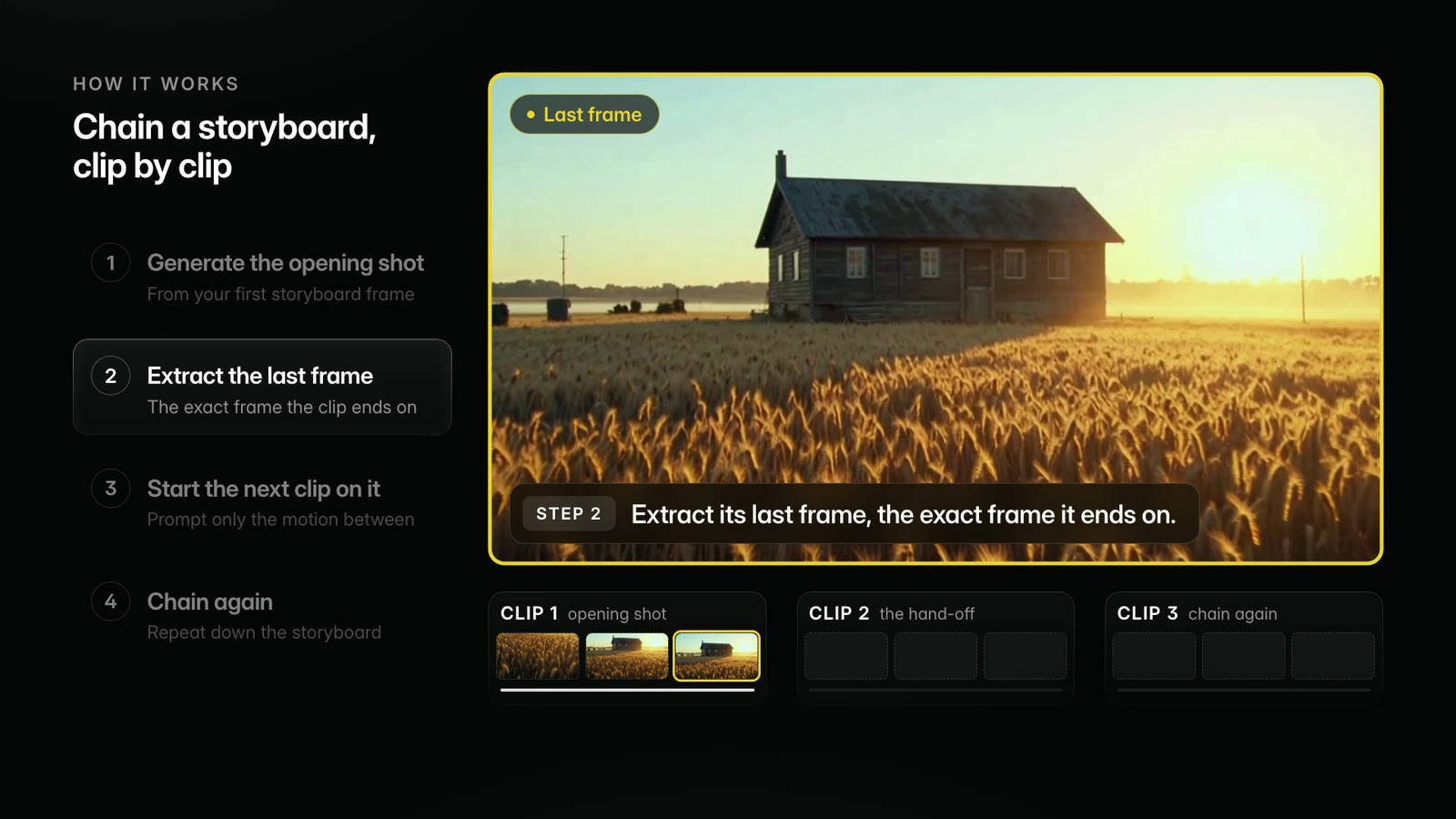
Frame chaining feeds the last frame of one AI video clip in as the first frame of the next, so a whole sequence reads as one continuous shot with no clip stutter or crossfades. Here is the exact first-frame / last-frame workflow, the models that support it, and how FXI Studio runs it natively.
Get the perfect shot with ready-to-use camera moves. Copy a recipe, drop it into any shot.
Every written tutorial in one place. Filter by what you are making: a model to learn, a pipeline to run, or a finished piece.
Showing 41 tutorials
Original Study
Speed, price and success rate for the video and image models we run, measured on real production jobs. Methodology, CSV and citation included.
Model Guide
Realistic motion with synchronized sound in a single pass. A director’s guide to intensity modifiers, camera language, and writing the Sound line like a sound designer.
Field Guide
Six shot types, six prompt structures, six real clips. The working grammar that separates an AI-generated clip from one worth projecting on a wall.
Workflow
Install the free extension, sign in once, and drop generated takes, stems, and vocals straight onto your tracks without leaving the session.
Pipeline
Frame chaining is the workflow of feeding each AI clip’s last frame into the next clip’s first frame, so a series of separate shots becomes one continuous, flowing sequence with no hard cuts. It is how you turn a storyboard of stills into a single cinematic move — and it is a built-in FXI Studio capability.
Pipeline
AI character consistency means holding one character’s face, wardrobe, and identity stable across many shots. You achieve it by building a reference sheet once, attaching it to every generation, and describing the character with identical words each time — or by tagging a reusable character so the studio carries the identity for you.
Pipeline
You build an AI storyboard by rapidly generating one still per shot with a fast image model, keeping your character consistent across every frame, then ordering the stills as a shot list. In FXI Studio a creator can go from an idea to a multi-shot storyboard in well under a minute, then animate it.
Model Guide
Veo 3.1 Fast is a text-to-video model that renders short cinematic clips with synchronized audio in one pass. Prompt it with one camera move, a named light source, a mood, and a sound line — then chain each clip’s last frame into the next for a continuous shot.
Model Guide
Kling v3 is a text-to-video model with unusually strong on-screen text rendering and steady, native multi-shot framing. Prompt it with the exact words you want on screen in quotes, one camera grammar, and a clear subject — it holds legible typography where most models smear it.
Model Guide
Nano Banana 2 is an image model that excels at fast, clean, well-composed stills and at holding a character consistent across many frames when you feed it reference images. Attach one or more references, describe the same subject in the same words each time, and it keeps the identity locked across a whole storyboard.
Model Guide
Z-Image Turbo is a fast image model built for ideation — it turns a written idea into a filmic still in seconds, so you can explore a look before committing credits to video. Prompt it like a cinematographer: name the film stock, the light, and the frame, then iterate quickly toward your storyboard.
Model Guide
LTX 2.5 is a fast video model built for draft previews and frame-chained motion. Use it to preview a shot cheaply before committing credits to a premium final: it accepts a first frame and a last frame, so it is the natural engine for turning two stills into one continuous move.
Model Guide
P-Video is a transition model: give it a first frame and a last frame and it generates the continuous motion between them, handing one shot to the next with no visible cut. It is the engine behind frame chaining — the workflow that turns a stack of separate stills into one flowing sequence.
Use Case
You make a cat-and-mouse comedy short by ideating the gag as stills, storyboarding the chase with a fast image model, locking both characters as consistent references, animating each beat, and frame-chaining the clips into one continuous film. A whole 7-shot chase can come together in a single session.
Use Case
You make an AI product ad by rendering a clean hero still, generating macro detail shots that keep the product identical, adding a legible on-screen callout, and frame-chaining the shots into one polished sequence with synced sound. The whole spot can be built and finished in a single session.
Use Case
You make an AI character sheet by rendering one character in consistent front, three-quarter, and profile views on a neutral background, then saving it as a reusable reference. That sheet becomes the identity anchor you attach to every still and shot so the character stays the same across your whole film.
Use Case
You make an AI movie trailer by ideating the film’s look as stills, generating a handful of striking hero shots with synced sound, cutting in legible text stings, scoring it to a rising beat, and frame-chaining the montage into one escalating sequence. The whole trailer can be assembled in a single session.
Workflow guide
The best AI tool to make a short film is one that carries a single vision across every shot instead of generating clips in isolation. FXI Studio does this with an AI director, node-based pipelines, and integrated editing, so a scene stays consistent from opening frame to final cut in one workspace.
Workflow guide
Frame chaining feeds the last frame of one AI video shot in as the first frame of the next shot. The model then generates continuous motion between them, so shots flow into each other with no still-image jumps or crossfades. Repeat the handoff shot to shot to build a seamless sequence.
Workflow guide
The cheapest way to iterate AI film shots is to refine on still images first, lock the exact frame you want, then generate video from it only once. An image iteration costs about $0.02, while video costs far more, so getting the frame right before you commit to motion is where the savings live.
Workflow guide
The AI storyboard-to-video workflow turns planned frames into motion in order: block the scene as still key frames, lock each one, then generate video from those frames and chain them together. FXI Studio runs the whole path in a single workspace, so the storyboard you approved is the sequence you shoot.
Workflow guide
Directing an AI video means deciding the coverage, the lens, and the continuity up front, then revising each shot against that plan, instead of typing one prompt and hoping. FXI Studio gives you an AI director who proposes shots and flags problems, so you make the calls a director makes rather than gambling on a single generation.
Workflow guide
To keep a character consistent across AI video shots, anchor every shot to the same character reference and carry frames forward instead of re-describing the character each time. FXI Studio holds a character across a directed scene, so a face, a wardrobe, and a look stay the same from the first shot to the last.
Model guide
Seedance Fast is a speed-first AI video model built for quick, low-cost shots while you are still exploring a scene. It trades some polish for turnaround, so you can iterate coverage cheaply and only reach for a premium model once the shot is settled. In FXI Studio it is the sensible default for early passes.
Model guide
WAN is a versatile AI video model that generates motion from either a text prompt or a starting image, which makes it a flexible general-purpose choice for shots that begin from a still or from a description. In FXI Studio it sits alongside the other video models so you can pick it per shot rather than being locked to one engine.
Model guide
Hailuo, the MiniMax video model, is known for expressive, lifelike motion and strong subject movement, which makes it a good fit for character-driven shots where performance and natural movement matter more than a static hold. In FXI Studio it is one of the video models you can pick per shot from the composer.
Workflow guide
To split a storyboard grid into individual shots for AI generation, drop the grid image into a grid splitter that detects its rows and columns and cuts each panel into a separate image. Board-Chop does this free in your browser, then lets you download the frames or hand one to an image-to-video shot to animate it.
Model guide
Veo 3.1 is an AI video model that turns a text prompt or a still image into a short cinematic clip with synchronized native audio. It is prized for physical realism, steady camera motion, and close prompt adherence. In FXI Studio you direct it one shot at a time and chain shots into a continuous scene.
Model guide
Kling is an AI video model built for expressive motion: fluid character movement, dynamic action, and coherent on-screen text. Kling v3 handles fast movement and gesture more convincingly than most models, which makes it a strong pick for performance and energetic shots. In FXI Studio you direct it per shot and chain the shots into a scene.
Model guide
LTX 2 is a fast AI video model built for quick iteration and camera-controlled shots. It renders in seconds rather than minutes and accepts first-frame and last-frame inputs, which makes it well suited to frame chaining. In FXI Studio you use it to draft and direct coverage quickly, then chain shots into a continuous scene.
Model guide
Nano Banana is an AI image editor that changes a photo from a plain-language instruction while keeping the same subject recognizable across edits. It handles restyling, retouching, background changes, and character-consistent edits. In FXI Studio you use it to refine a frame and prepare it to become the first frame of a video shot.
Use-case guide
To make AI video for a real-estate listing, turn your listing photos into moving shots and chain them into a continuous tour. In FXI Studio you hand a room photo into an image-to-video shot so the camera glides through the space, then frame-chain the rooms into one flowing walkthrough, without a crew, a gimbal, or a drone day.
Use-case guide
To make AI product video for ecommerce, turn your existing product photos into clean moving shots. In FXI Studio you refine the product frame with an AI image editor, hand it into an image-to-video shot so the camera turns around the product, and chain shots into a short spot, without booking a studio or a rotating table.
Use-case guide
To make AI ad creative and UGC-style video, direct a short spot shot by shot and chain the shots into a finished ad, then spin variations to test. In FXI Studio you build the hook, the product beat, and the payoff as directed shots rather than prompt-and-pray clips, so you can produce many creative variations without booking a creator for each one.
Workflow guide
To make AI video clips flow as one continuous shot, extract the final frame of each clip and use it as the starting frame of the next. That shared frame removes the jump between clips. FXI Studio automates this handoff in its node pipelines, Director Mode, and the CineGraph Seamless Loop, so you chain shots without stitching frames by hand.
Workflow guide
A one-line idea is enough to start, but the film comes from the plan, not the line. Bezaleel turns the idea into scenes you can read, edit and approve before any video credits are spent, so you direct the result instead of re-rolling one long prompt.
Workflow guide
Scripts become video one scene at a time. The work is in the breakdown: which beats become shots, what each shot looks like, and which characters must match across shots. Automating that breakdown, then approving it, is what makes a script-to-video workflow hold together.
Use-case guide
A good AI launch video is directed, not prompted. Lock the product look in a still first, animate from that frame so the product does not drift, and keep words and logos out of the generated frames: add them last, where they stay sharp.
Workflow guide
The cost of an AI film is set by how many takes you render, not by crew or locations. Plan the shots and approve stills first, so most takes land on the first or second try, and a minute of film stays in the single-digit to low double-digit dollars.
Use-case guide
A gratitude film works because it is specific: one person, one memory, one sentence of thanks. Plan it as stills first, where changes are cheap, and spend on motion only for the frames you have already approved.
Workflow guide
Frame chaining is simple to describe and easy to get wrong in practice: the model does not always honor the last-frame anchor, so a real production budgets for a retake on at least one seam. The worked example below needed one retake on two of its four chained shots and still finished for 90 credits.
Short walkthroughs of each surface, ready to open.

Screen walkthrough · 46 sec
Carry the last frame of one clip into the next as its first frame, until a storyboard plays as one continuous shot.
Watch the walkthrough
Director
From a blank canvas to a cut with Director Mode.

Generate
Models, settings and styles on the Generate page.

Image to video
Turn a finished still into a moving shot.

Atmosphere
Ambient loops built from vibe, light and motion presets.

CineGraph
Node-based pipelines that chain models together.

Reference
Every tool, setting and model, explained in one place.
No sign-up, no watermark. They run on your device, so your footage never leaves it.

Free tool
Turn any clip into a GIF. Trim, size and download in seconds.

Free tool
Save the first or last frame of a video as a JPG, ready to chain into the next shot.

Free tool
Cut the start and end of a clip on a filmstrip. Lossless when it can be.

Free tool
Reframe a video to 9:16, 1:1, 4:5 or 16:9 for TikTok, Reels and YouTube.

Free tool
Shrink a video under 25 MB, 16 MB or any size you pick, and see the saving.
Short, direct answers to the questions directors ask most.
Browse guidesEvery tool in the studio, how it works and when to reach for it.
Read the docsFinished work made in FXI Studio, with the prompts behind it.
Explore the galleryLooking for a specific tool? Browse the documentation, the guides, or all tutorials.